vim-beginner
A guide for Vim beginners
It can be challenging to transition from a full-fledged IDE (such as VScode, Intellij IDEA) to Vim. Vim has a steep learning curve, especially for beginners. As someone who has struggled to learn Vim multiple times, I understand the difficulties involved. That’s why I have created this guide to help you overcome the initial hurdles.
The key differences between this guide and other guides are that:
- The commands are categorized into 4 modes:
Normal Mode,Insert Mode,Command-Line ModeandVisual Mode. - It introduces the idea with
VerbsandNouns.Verbsrepresent that actions users take,Nounsare the text objects whichVerbsact upon.Verbsconsist ofTransitive VerbsandIntransitive Verbs. Transitive Verbsare theVerbsneed to work withtext objects.Intransitive Verbsare theVerbswork alone withouttext objects.
Four modes
Normal Mode
It’s the default mode when you first enter Vim.
The reason why this is the default mode is because we spend most of our time reviewing and updating text rather than writing new contents.
You can’t insert text directly in this mode. This is the key difference between Vim and other text editors.
Text object
A command is able to move the cursor to a specific place in the document. Text object is the content that cursor just go through.
A text object are blocks of text which can be select and manipulate as an entity.
For example:
h will move cursor to the left, thus it also represents a text object - the char on the left, dh will delete the char on the left.
l will more the cursor to the right, dl will delete the char on the right. d2l will delete 2 chars on the right.
w means word, type w will move the cursor after the current word. dw will delete the word. d2w will delete two words.
0 means start of the line, type 0 will move the cursor to the start of the line. d0 will delete the whole content that the cursor just go through.
$ means end of the line, guess what d$ will do, and give it a try.
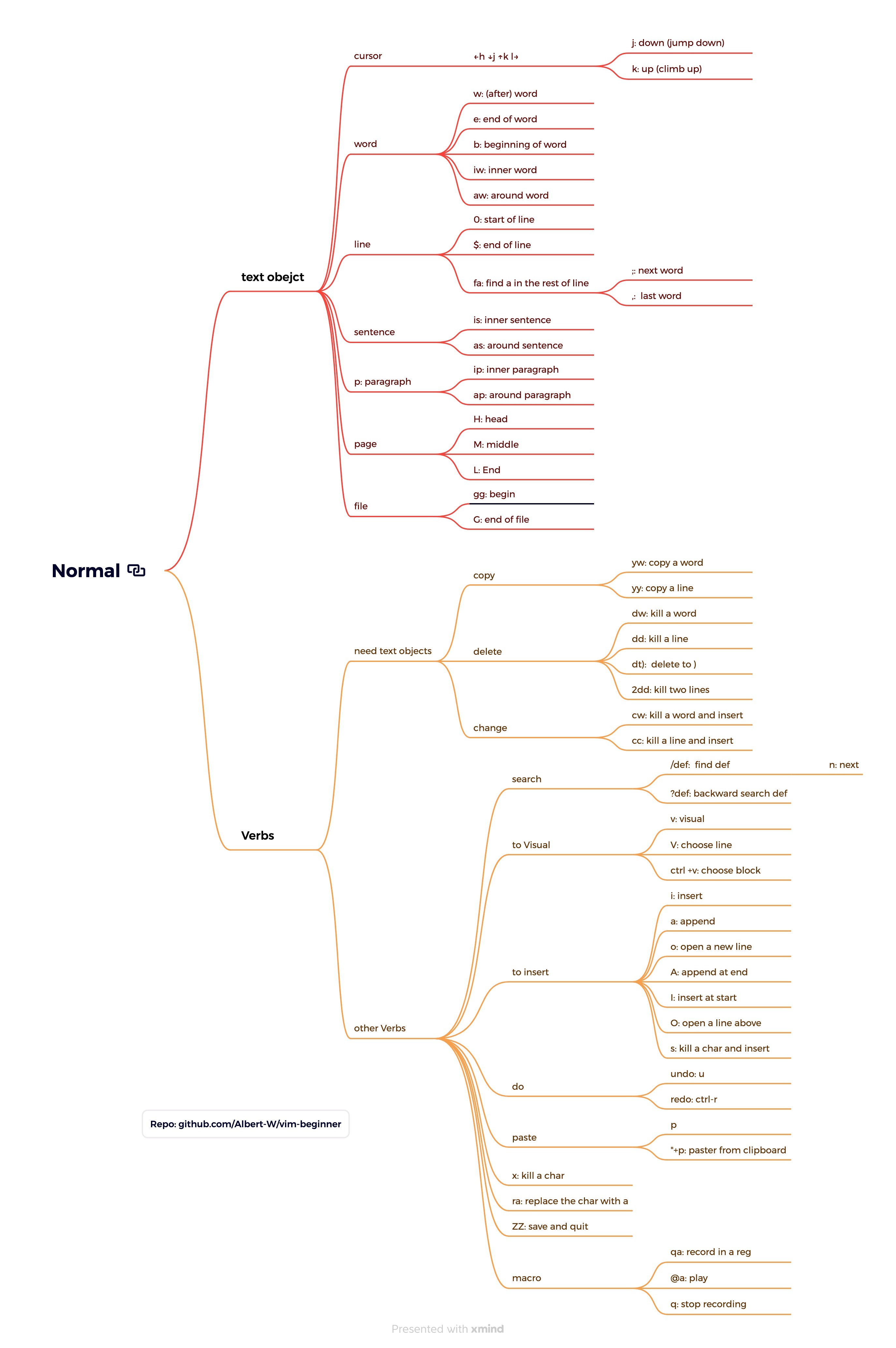
This is not an exclusive list of text objects, more of them will be illustrated in the image.
Transitive Verb
Transitive Verb need to work with a text object. There are 3 transitive verbs.
c- change.cw- delete a word and insertcc- delete a line and insert
d- delete.dw- delete a worddd- delete a lined2d- delete 2 lines
y- yank(copy), it means pull the text in to registeryw- copy a wordyy- copy a liney2y- copy 2 lines
Intransitive Verb
Intransitive Verbs are the verb can work without a text object. There are many of them. Some of the most used verbs are
p- pastex- kill a chars- kill a char and insertu- undoctrl - r- redo
Commands in Normal Mode
A tree diagram of commands in Normal Mode are illustrated below.
Insert Mode
The mode to insert text, like most other editors.
To enter Insert Mode, just type in
i- inserta- appendo- open a new lines- kill a char and insertcw- kill a word and insert
Here are some most commonly used shortcuts in Insert Mode:
Ctrl-h- Delete the character before the cursor (backspace).Ctrl-w- Delete the word before the cursor.Ctrl-u- Delete all characters before the cursor on the current line.Ctrl-t- Increase the indent of the current line.Ctrl-d- Decrease the indent of the current line.Ctrl-o- Temporarily enter Normal Mode to execute one command, then return to Insert Mode.Ctrl-r {register}- Insert the contents of a register. (e.g.,Ctrl-r 0will paste the just copied contents)Esc- Exit Insert Mode and return to Normal Mode.
Visual Mode
The mode to select texts as a text object and manipulate them with the Transitive Verb.
To enter Visual Mode, just type in
v: visualV: choose linesCtrl-v: choose block.
In this mode, you can use following commands:
d: deletey: yankp: paste
Command-Line Mode
The mode to execute commands, to enter Command-Line Mode, just type in : in normal mode.
Here are some used commands:
:w- Write (Save the current file).:q- Quit Vim or Close Pane:wq- Save the current file and quit Vim.:q!- Quit Vim without saving changes.:x- Save the current file and quit Vim (same as:wq).:e filename- Open a file namedfilename.:r filename- Read the contents offilenameand insert it into the current file.:set option- Set an option. They can be configured in~/.vimrcfile too.set nu- How line numbersset hls- Highlight search:set clipboard=unnamed- Use the system clipboard for all yank, delete, change, and put operations.:syntax on- Enable syntax highlighting. It does not require the set keyword.
:noh- Remove search highlighting.:help- Open the help documentation.:! command- Execute an external command (e.g.,:!lsto list directory contents).:/pattern- Search for a pattern in the file. (e.g.,:/datafinddatain the file):s/pattern/replacement/g- Substitutepatternwithreplacementin the current line.:%s/pattern/replacement/g- Substitutepatternwithreplacementin the entire file.:10- Go to line 10:vs- Vertical split window.:sp- Split window (Horizontal):reg- list and print all the contents in registers
Conclusion
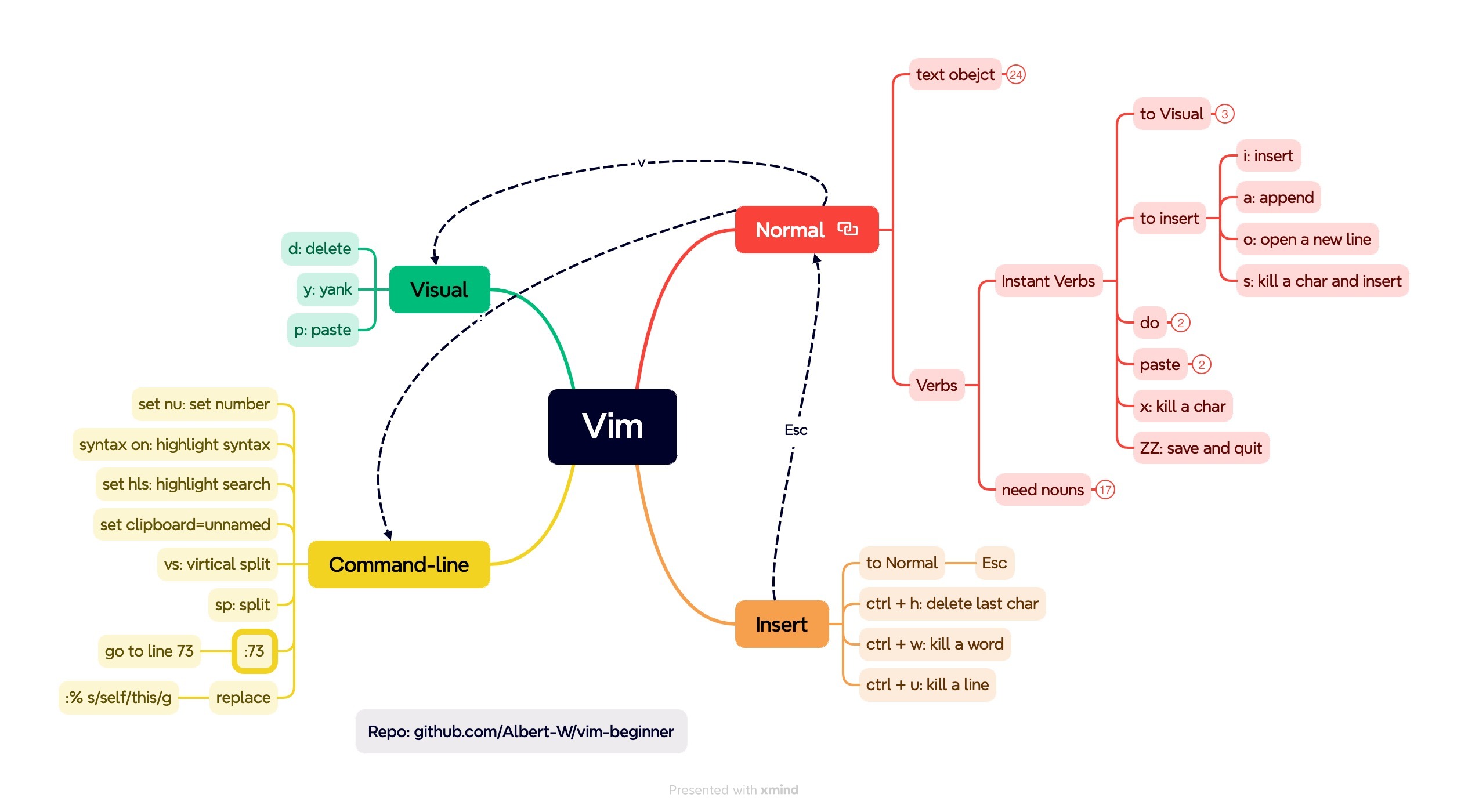
A mind map of 4 modes in Vim will conclude the guide for Vim beginners.
Repo: vim-beginner